
Apple Pay

Add your ANNA card and pay instantly with your Apple devices

Use your ANNA Money account with Apple Pay to make fast, secure payments using your iPhone or Apple Watch.

Add your virtual card and start paying in-store immediately, no need to wait for your physical card.

Open an account
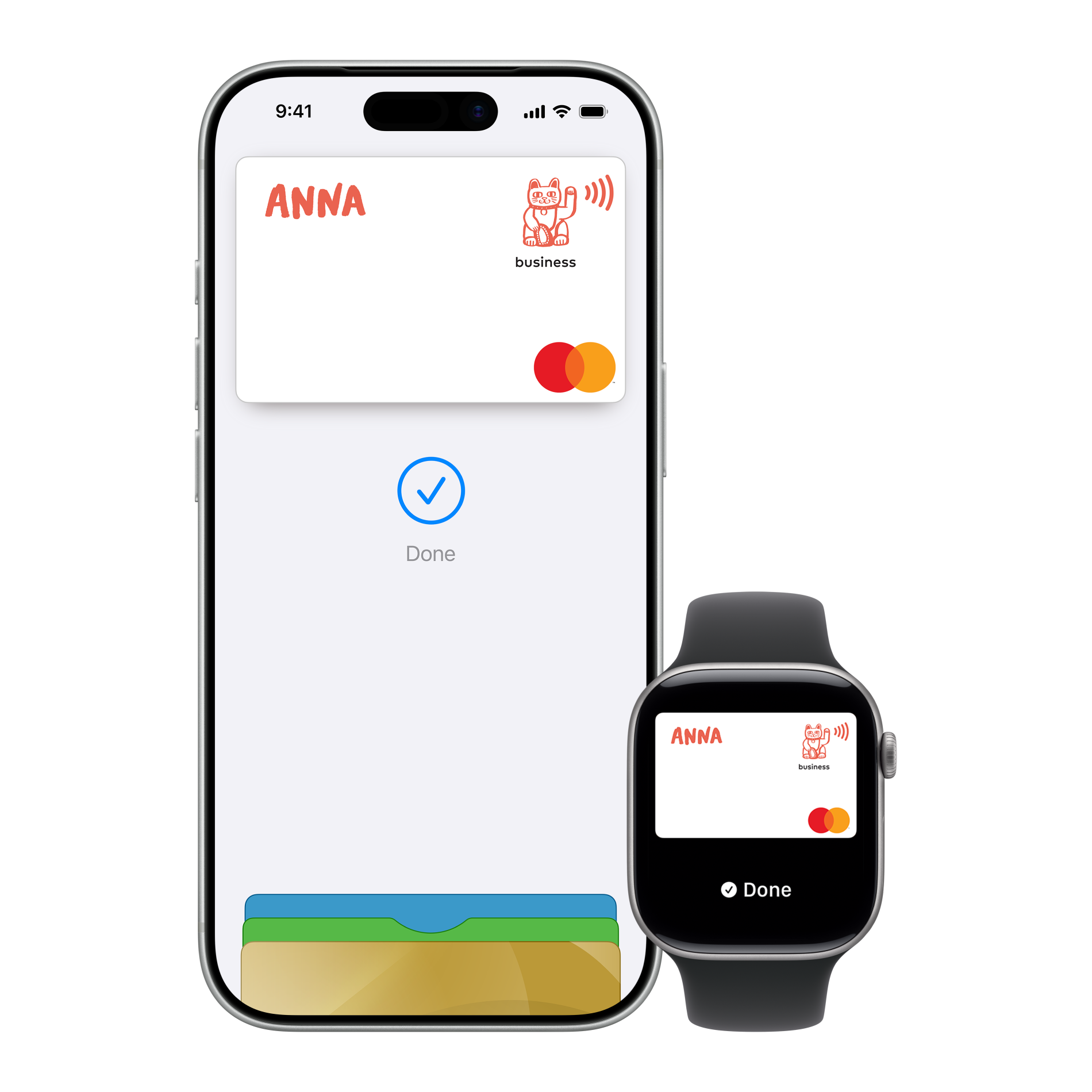
iPhone and Apple Watch showing a digital Mastercard labelled ANNA business with a checkmark and 'Done' indicating a completed payment.

This is the default text value

New to Apple Pay

Forgot your ANNA card? No problem. Add it to Apple Wallet and pay using your iPhone or Apple Watch wherever contactless is accepted.

Apple Pay gives you all the benefits of contactless — with extra security. Your card number is never stored on your device or shared with merchants. Every payment is protected by Face ID, Touch ID, or your device passcode.

Setup Apple Pay
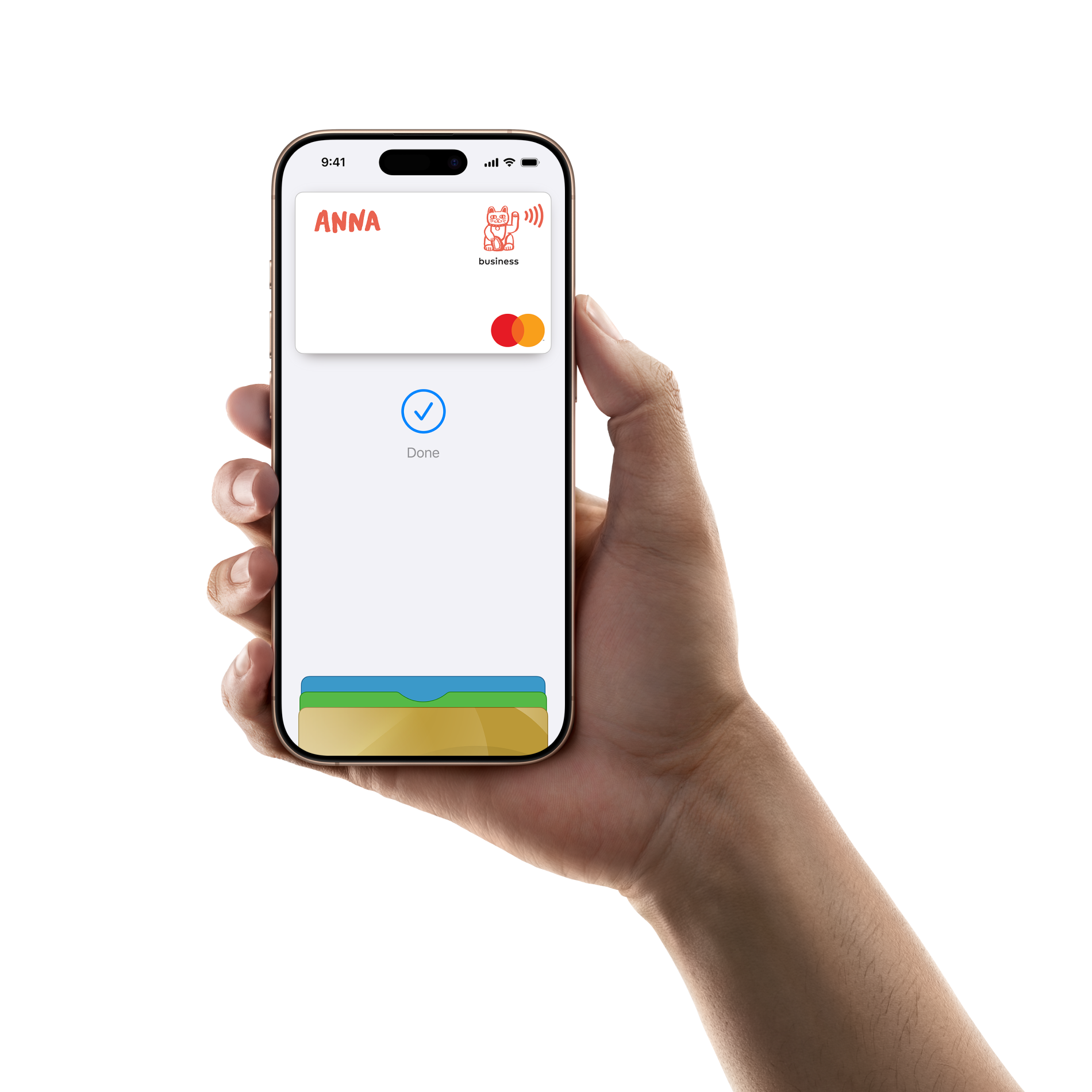
Hand holding a smartphone displaying a digital Mastercard with the name ANNA and a 'Done' checkmark on the screen.

ANNA One - Apple Pay

Setting up Apple Pay is easy

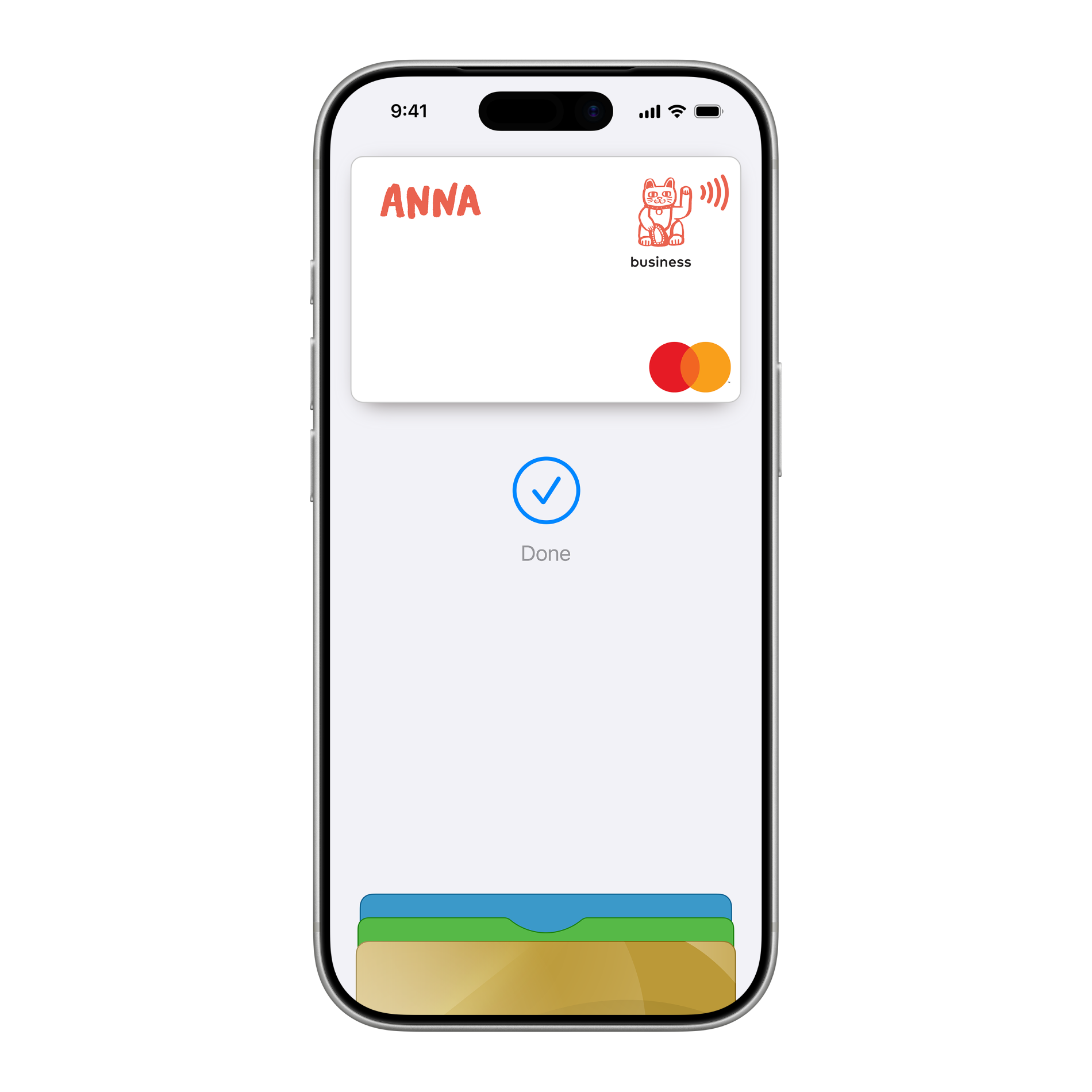
Mobile phone screen showing a digital business Mastercard with the name ANNA and a checkmark indicating completion.

Starting in the ANNA app

  • Open the ANNA Money app
  • Tap Money on the bottom bar
  • Select Cards, you can add either your virtual card or physical card
  • Tap Add to Apple Wallet
  • Agree to Pay terms and verify using a one-time passcode
Apple Wallet app icon with layered colorful cards inside a grey wallet on black rounded square background.

From your Apple device

  • iPhone: Open the Wallet app and tap+
  • Apple Watch: Open the watch app -> Wallet & Apple Pay -> Add Card
  • iPad: Settings: Wallet & Apple Pay -> Add Card
  • Mac with TouchID: System Settings -> Wallet & Apple Pay -> Add Card

Using Apple Pay

Paying in Person

Hold your iPhone near the terminal and confirm with Face ID or double-click the side button.On Apple Watch, double-click the side button and hold your watch near the reader.

Paying in apps and online

Choose Apple Pay at checkout in Safari or participating apps. Confirm using Face ID, Touch ID, or your device passcode. On Mac, complete the payment using your iPhone, Apple Watch, or Touch ID.

FAQ

How to add my card to Apple Wallet?

Setting up Apple Pay is easy!
On iPhone, open the Wallet app and tap the “+” sign.
For Apple Watch, open the Apple Watch app on your iPhone and select “Wallet & Apple Pay,” then tap “Add Credit or Debit Card.”
On iPad, go to Settings, open “Wallet & Apple Pay,” and select “Add Credit or Debit Card.”
On MacBook Pro with Touch ID, go to System Preferences, select “Wallet & Apple Pay,” then select “Add Card.”

Where can I use Apple Pay?

Paying in shops with Apple Pay

To pay with Face ID, double-click the side button, glance at your screen, then hold your iPhone near the reader.
For Touch ID, hold your iPhone near the reader with your finger on Touch ID.
On Apple Watch, double-click the side button and hold your Apple Watch up to the reader.

Paying in apps and on websites with Apple Pay
To pay in apps and on websites in Safari on your iPhone and iPad, choose Apple Pay at checkout and complete the payment using Face ID or Touch ID.
To pay on websites in Safari on your Mac, choose Apple Pay and complete the payment using your iPhone or Apple Watch. On MacBook Pro, pay using Touch ID on the Touch Bar.

How to remove a card from Apple Wallet?

To remove a card from Apple Pay, open the Wallet app, select the card you want to remove, tap the three dots (...) in the corner, and choose Remove Card. Alternatively, go to Settings, then Wallet & Apple Pay, select the card, and tap Remove Card.

What our customers say about us

What our customers say about us

Sign up for your ANNA One account

ANNA is a business accountant with an assistant that sorts out your financial admin. And it's all free while you're starting up

Sign up for your ANNA One account

ANNA is a business accountant with an assistant that sorts out your financial admin. And it's all free while you're starting up